On this page
Processing and indexing
Upload your first document
Open a space where you are an editor or owner. In Documents, click Choose files and upload a UTF-8 text or Markdown file. For PDF, Office files or scans, set up the Extractor first.
Wait for Indexed and check that the document is active. Search for a phrase from the file and open the matching passage.
If the phrase is missing, inspect the extracted passages. Check extraction and chunk boundaries before changing retrieval settings.
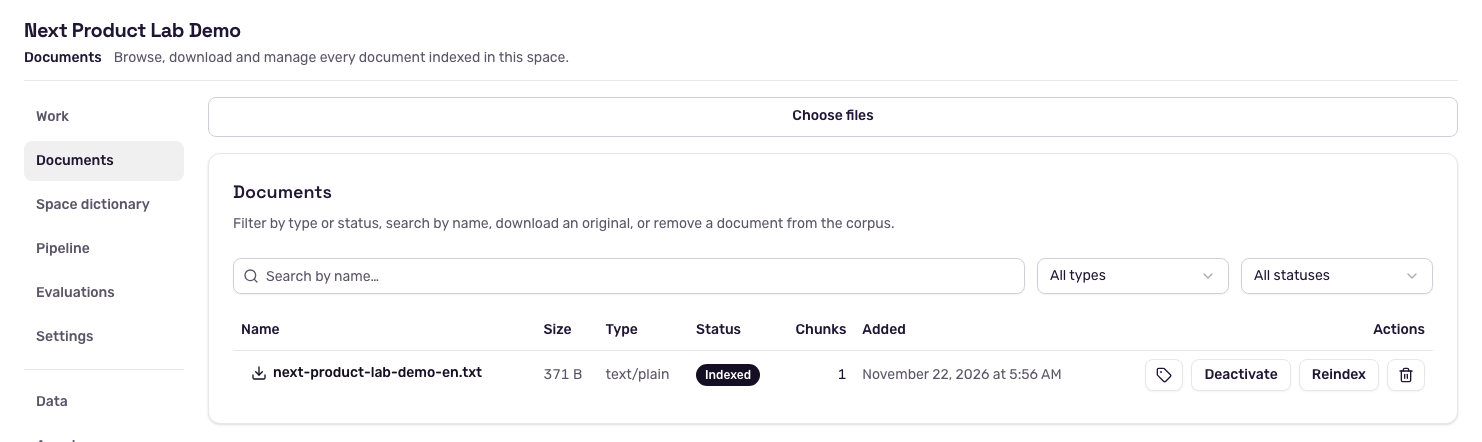
Check Status and Chunks for the indexed sample guide.
What gets indexed
Original file
ContextBase keeps the uploaded file for download and reprocessing.
Extraction
The extractor reads text and any available structure, such as sections and tables.
Chunking
The chunker divides the extracted text into passages.
Indexing
The space builds the representations its retrievers use.
Upload and search via REST
Set BASE_URL to the instance URL and SPACE_ID to the space UUID.
Set CONTEXTBASE_API_KEY in a trusted client or service. Use a key with
write access for upload and search access for the second request.
printf '%s\n' 'Travel requests are due ten working days before departure.' > travel.txt
curl --fail-with-body -sS \
  -H "X-API-Key: ${CONTEXTBASE_API_KEY}" \
  -F 'file=@travel.txt;type=text/plain' \
  -F 'name=Travel policy' \
  -F 'metadata={"department":"operations","year":2026}' \
  "${BASE_URL}/api/v1/spaces/${SPACE_ID}/documents"
Upload runs inline. Read status and is_active in the 201 Created
response and keep id for inspection or download. If name is omitted,
the filename is used. Send metadata as one JSON object, preserving value
types such as 2026 versus "2026".
Upload endpoint
Search the same space.
curl --fail-with-body -sS \
  -H "X-API-Key: ${CONTEXTBASE_API_KEY}" \
  -H 'Content-Type: application/json' \
  -d '{"query":"When are travel requests due?","top_k":3}' \
  "${BASE_URL}/api/v1/spaces/${SPACE_ID}/search"
For a generated answer, see Search and answers.
Import an archive
In a space with managed storage, choose how to import a ZIP, TAR.GZ, TGZ, RAR or 7Z archive in Documents:
One document combines the extracted text from readable entries.
Separate documents gives each admitted entry its own document record and indexing operation. Check each result, since the archive can contain skipped or failed entries.
The managed REST import is
POST /api/v1/spaces/{space_id}/documents/archive with the archive in a
multipart file part and query parameters command_id (UUID) and
mode=combined or mode=separate. The 202 Accepted response
contains items with each entry’s status and operation ID where applicable.
Keep the same command UUID, file, mode and other options when retrying an
unanswered submission. The archive reader enforces limits on expanded size
and entries, and rejects unsafe paths. The document admission limit applies
to the uploaded archive itself. For attached storage, the browser uses the
combined ordinary upload path and that storage’s write rules apply.
Archive import
Common upload results
400: check the named field, including metadata types and extraction preferences.403: use the editor or owner role for uploading.413: checkDOCUMENT_MAX_UPLOAD_BYTES(100 MiB by default) and the gateway’s request-body limit. Upload limit.409or428with attached storage: check the reason and verify mapping, supported settings and corpus confirmation in Connections and storage.Uploaded (
uploaded): the file is stored. If no passages are searchable, check its encoding, format support and OCR.